Learn
Play backgammon with friends on iPhone and iPad
Choose same-device play, an iCloud invitation, SharePlay or Game Center, with beta-aware instructions and labelled native app captures.
To play Backgammon with a friend on iPhone or iPad, choose same-device play when you are together, an iCloud invitation to take turns on separate devices, or SharePlay inside that shared iCloud game to play together during a call. Game Center is a separate online invitation and matchmaking route.
This guide describes Ocho’s Backgammon beta as checked on 25 October 2026. The public beta description requires iOS or iPadOS 27 or later and includes all play modes for free. A public App Store listing was not confirmed in the US or Netherlands checks. Use this page’s app button for the current installation route; both remote players need the app installed.
Choose the mode that fits
| What you want | Choose | What you need |
|---|---|---|
| Sit together and share one board | Play together on this iPhone/iPad | One compatible device; local play works offline |
| Take turns when each person has time | Invite a friend to play | Two devices, separate Apple Accounts signed into iCloud, internet and an accepted invitation |
| Talk and play the same saved game live | SharePlay from the shared iCloud board | Both players have access to that game, compatible devices, internet and the relevant Apple services |
| Use Apple’s player invitations or matchmaking | Find a player on Game Center | Game Center sign-in and internet on each device |
These mode boundaries come from Ocho’s current beta product description and app navigation. Pro is optional for playing with friends; choosing certain board finishes is a separate Pro feature.
Play on one iPhone or iPad
- Open Backgammon’s main menu and choose Play together on this iPhone or Play together on this iPad. The wording follows the device.
- Agree who plays each color, then take turns using the same board. No iCloud invitation, FaceTime call or Ocho account is required for local play.
- Follow the turn indicator before moving. If a move is unavailable, check the dice and bar rules rather than starting another game.
For a teaching game, talk through one turn at a time using the first-game walkthrough. The app’s Game Settings → Game Play → Match length offers a single game or 3, 5 or 7 points in the current beta. Its single-game mode disables doubling; multi-point matches use the cube and Crawford rule. Choose the rules before starting a new match.
Invite a friend through iCloud
- On the main menu, choose Invite a friend to play. If Contacts permission is requested, it is optional and helps match invitation names. Pro players may also be asked to choose a board to share.
- Let the app prepare the iCloud game, then send its invitation using the sharing options offered on your device.
- Your friend opens the invitation on their own compatible iPhone or iPad, using their own Apple Account. In Backgammon, choose Join game on the invitation card.
- Play in that shared board. When you return later, reopen the existing saved game from the gallery or Now Playing instead of creating a new invitation for every turn.
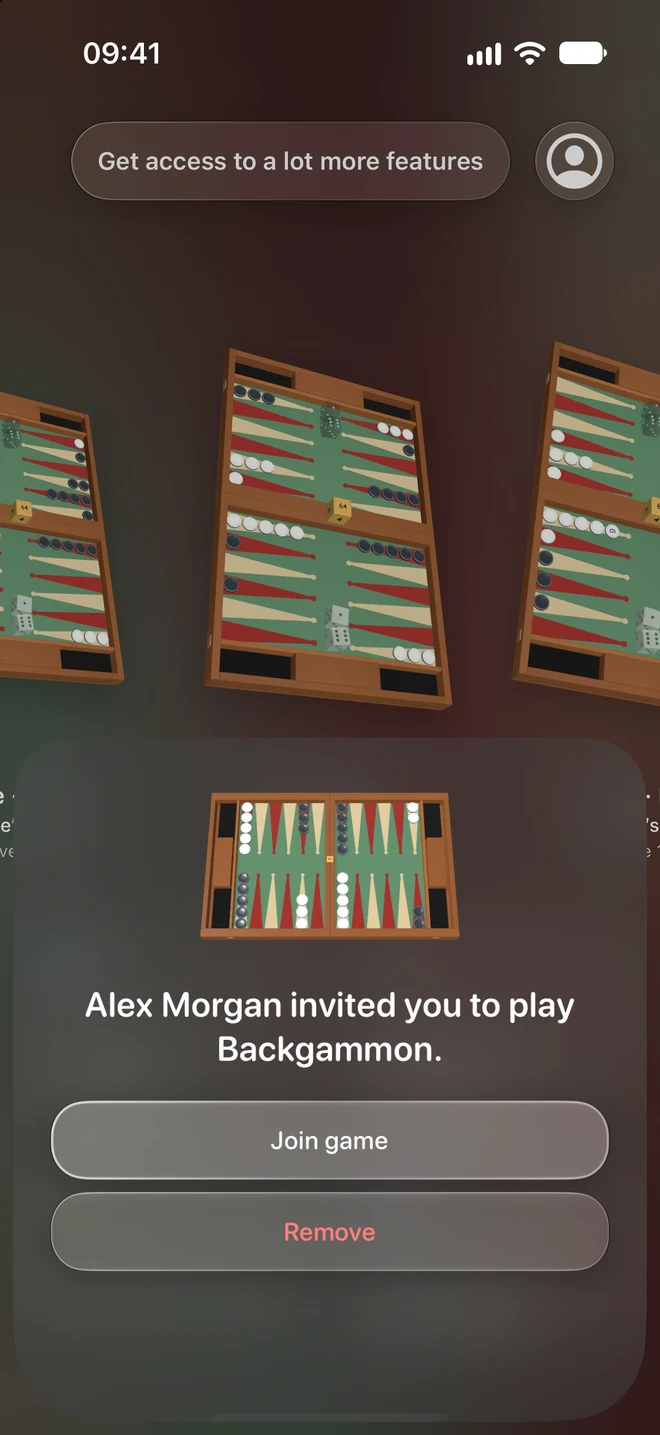
The iPhone image is an original app capture from version 1.0 build 50, using example invitation data. It illustrates the Join game control; it is not evidence of a completed live invitation between two people. Newer beta builds may adjust the layout.
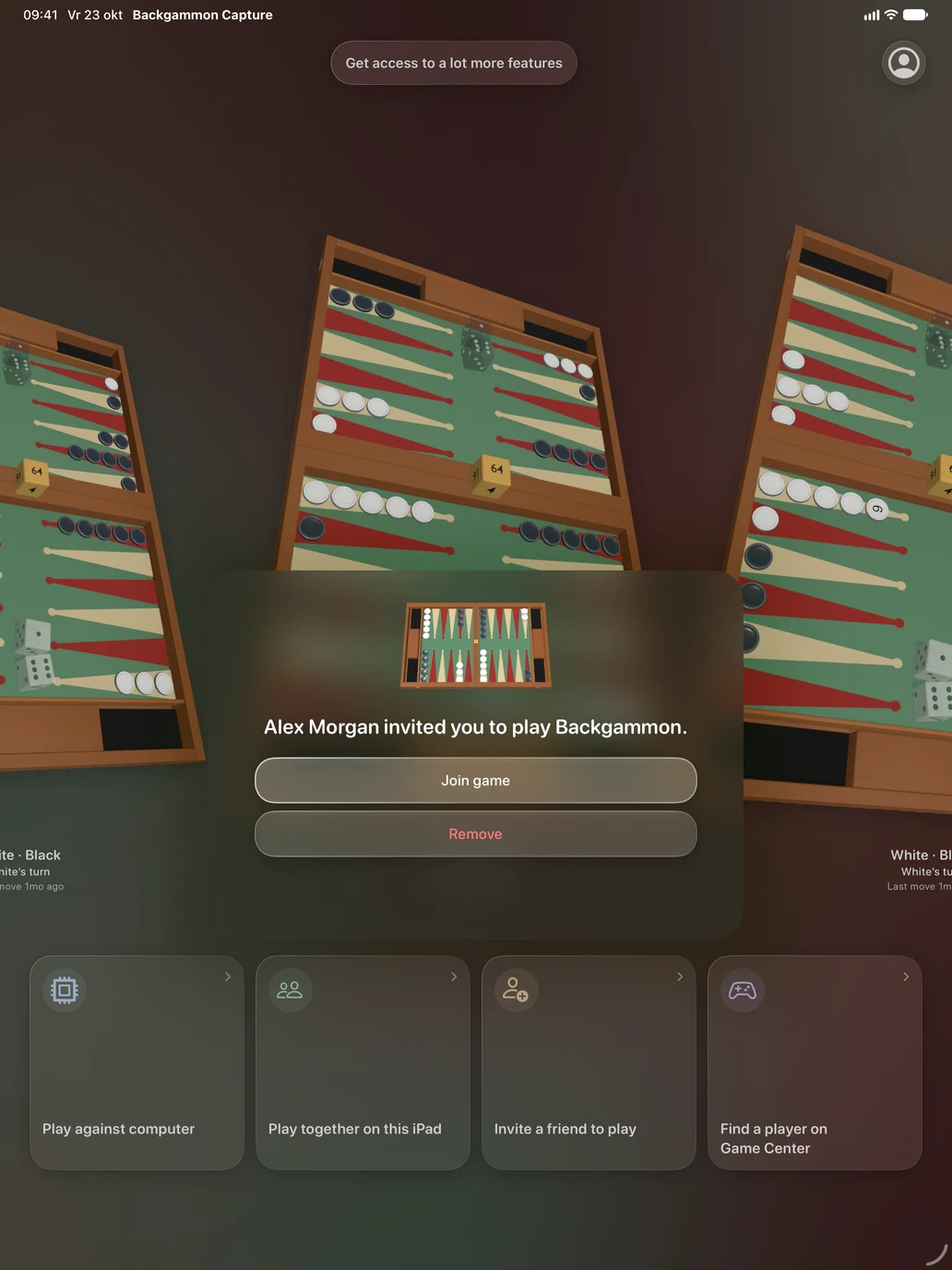
The iPad capture uses the same build and example state. The main-menu choices visible behind the card include same-device play, an iCloud invitation and Game Center. The invitation card must be handled before interacting with the menu behind it.
Use SharePlay on the shared game
First create and accept the iCloud invitation. Both players should open that same board. During a FaceTime call, expand the board’s player/turn information until the SharePlay icon is visible, then choose it. Its accessibility label is Play Together with SharePlay. Follow Apple’s session prompts on both devices.
Apple documents the general requirements and regional availability of FaceTime and SharePlay in its iPhone SharePlay guide. Backgammon’s own SharePlay route operates on the shared iCloud board; starting an unrelated Game Center game is not a substitute for accepting that board’s invitation.
The intended workflow is to leave SharePlay and continue the same saved iCloud game asynchronously. Use the session’s Leave SharePlay control when you want to leave the live session. Do not remove the saved game just to end a call. Online turns and notification timing depend on connectivity, permissions and Apple service delivery; this guide does not promise instant background updates.
Use Game Center instead
Choose Find a player on Game Center from the main menu and follow Apple’s player-invitation or matchmaking screen. Sign into Game Center in device Settings if prompted. This creates a Game Center match, separate from an iCloud-shared board. Return to that saved match to continue its turns.
If your friend cannot join or a turn looks stale
Confirm both players have installed a compatible beta and are connected to the internet. For an iCloud game, check that the recipient opened the original invitation with the intended Apple Account and that both players are opening the same saved board. For Game Center, check Game Center sign-in instead. If an online move is still saving, let it finish before trying to start SharePlay. Reopen or refresh the existing saved game before making a new invitation.
Optional notifications can alert you to turns, but a missing alert does not establish that a game was lost. If the problem persists, report the app build, device, OS and steps through TestFlight feedback. Avoid deleting your saved game as a first troubleshooting step.
What was checked
The instructions were checked against Ocho’s current beta description, app source and English labels on 25 October 2026, plus the native build-50 captures above. Those checks verify the documented controls and intended mode flow. A fresh two-device test of the current distributed build was not performed for this article; remote-service behavior remains subject to beta testing. The older captures are labelled explicitly, and unreleased features are not needed to follow this guide.